

 001.Autocad Blocks
 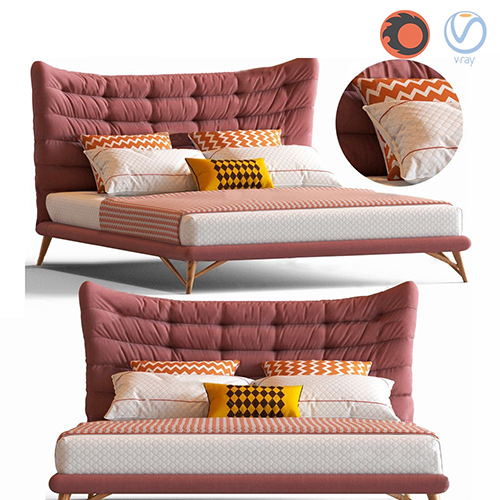 1.Furniture
  Arm chair
 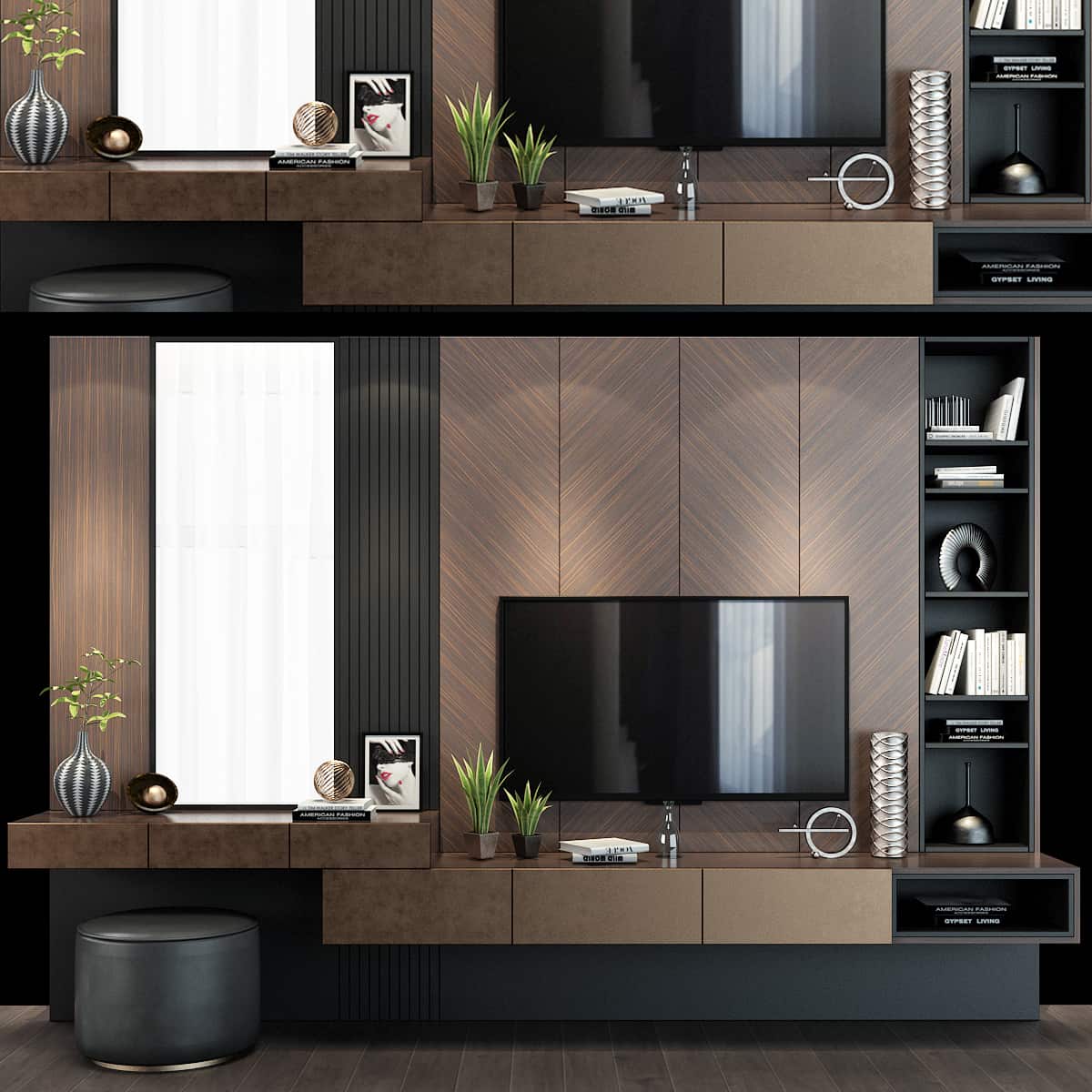 TV Wall
  2.Decoration
  1.Plants
  2.Vase
 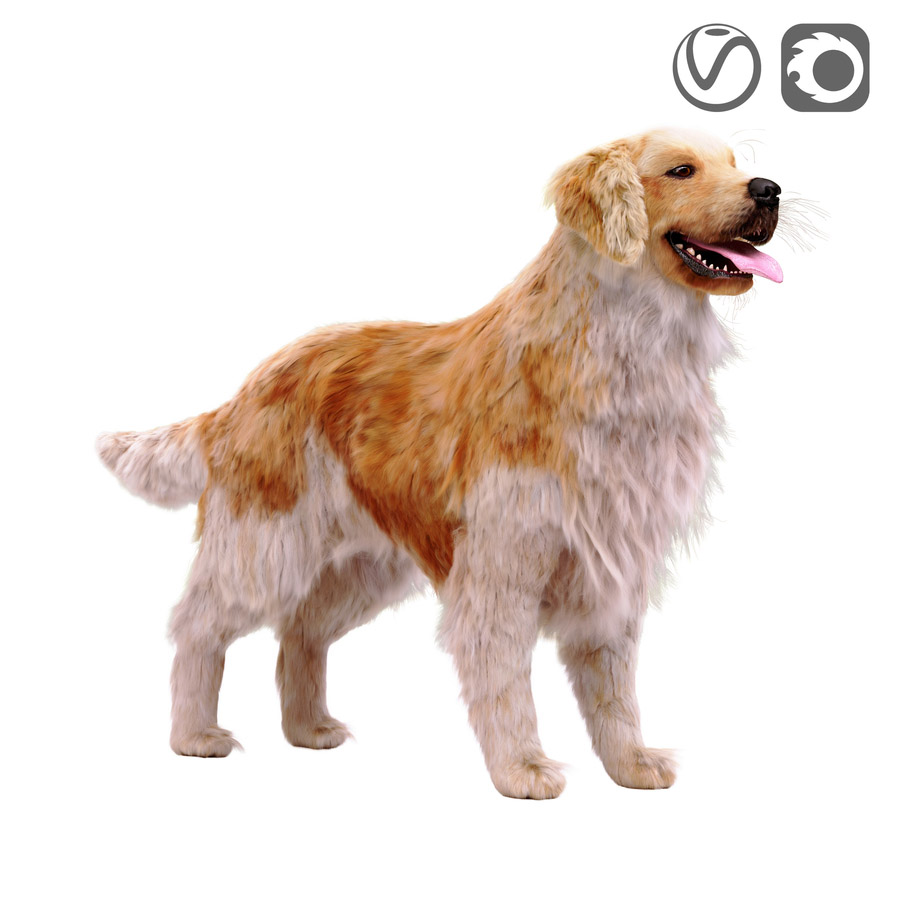 3.Animal
 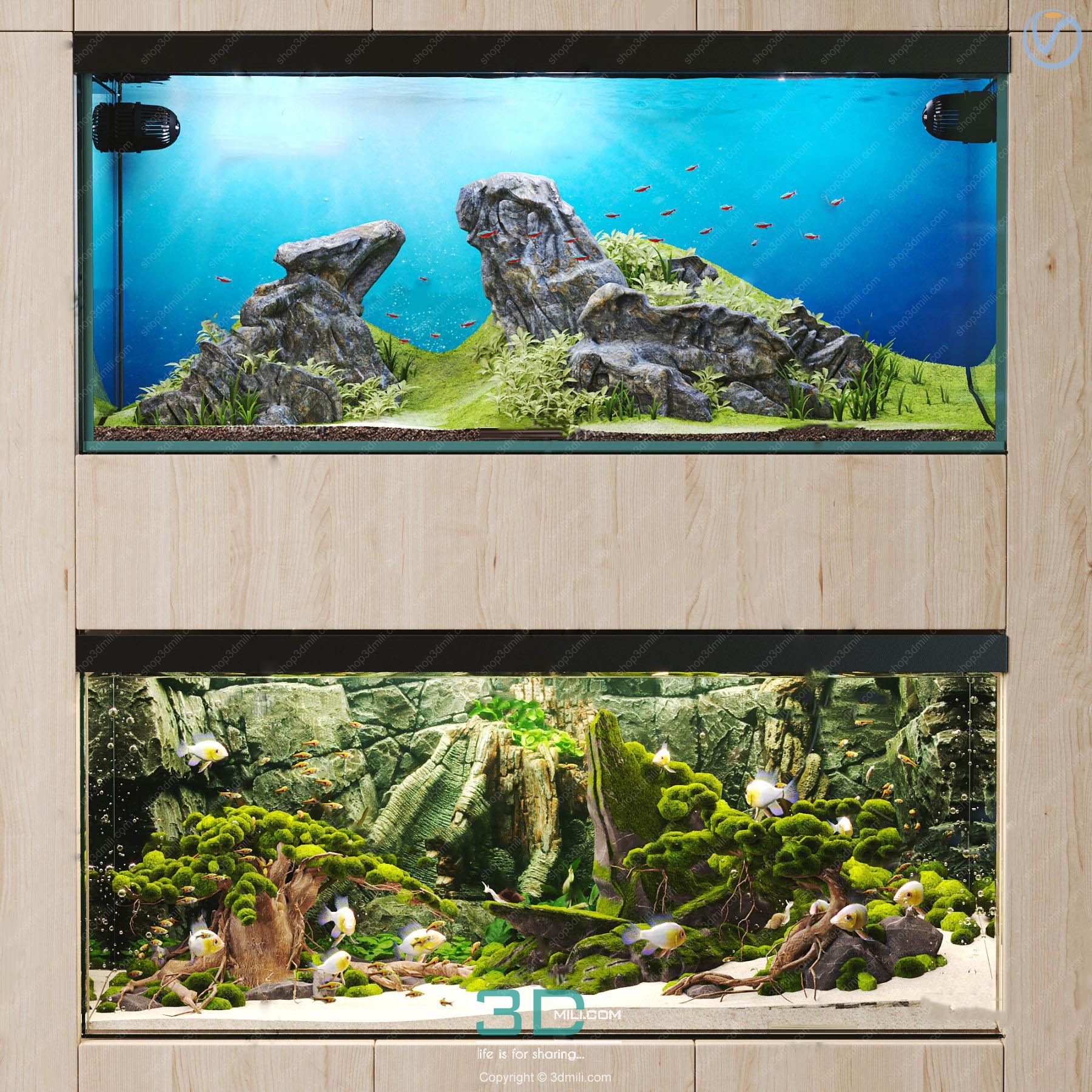 Aquarium
 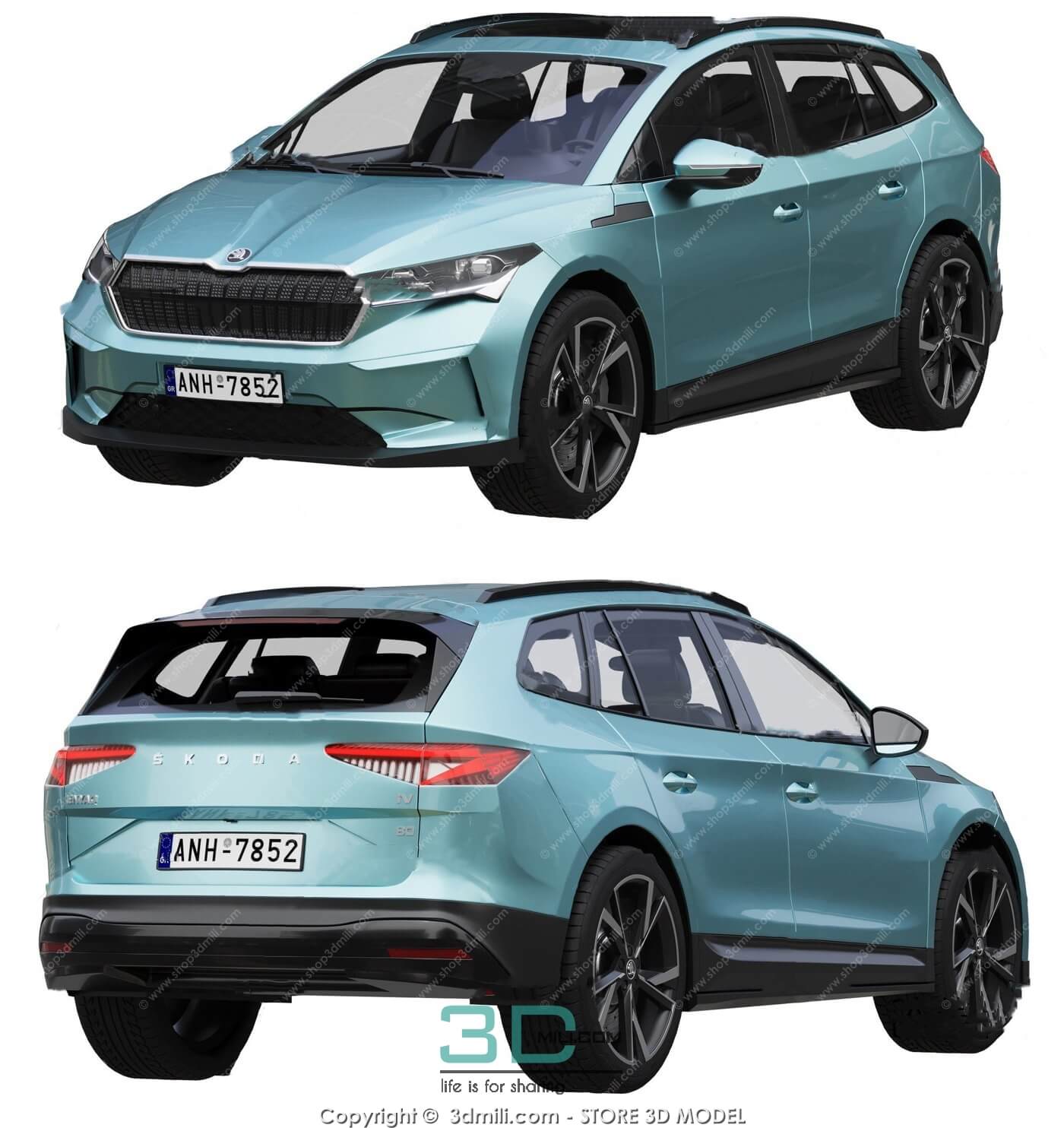 Car – Bike
  3.Lighting
 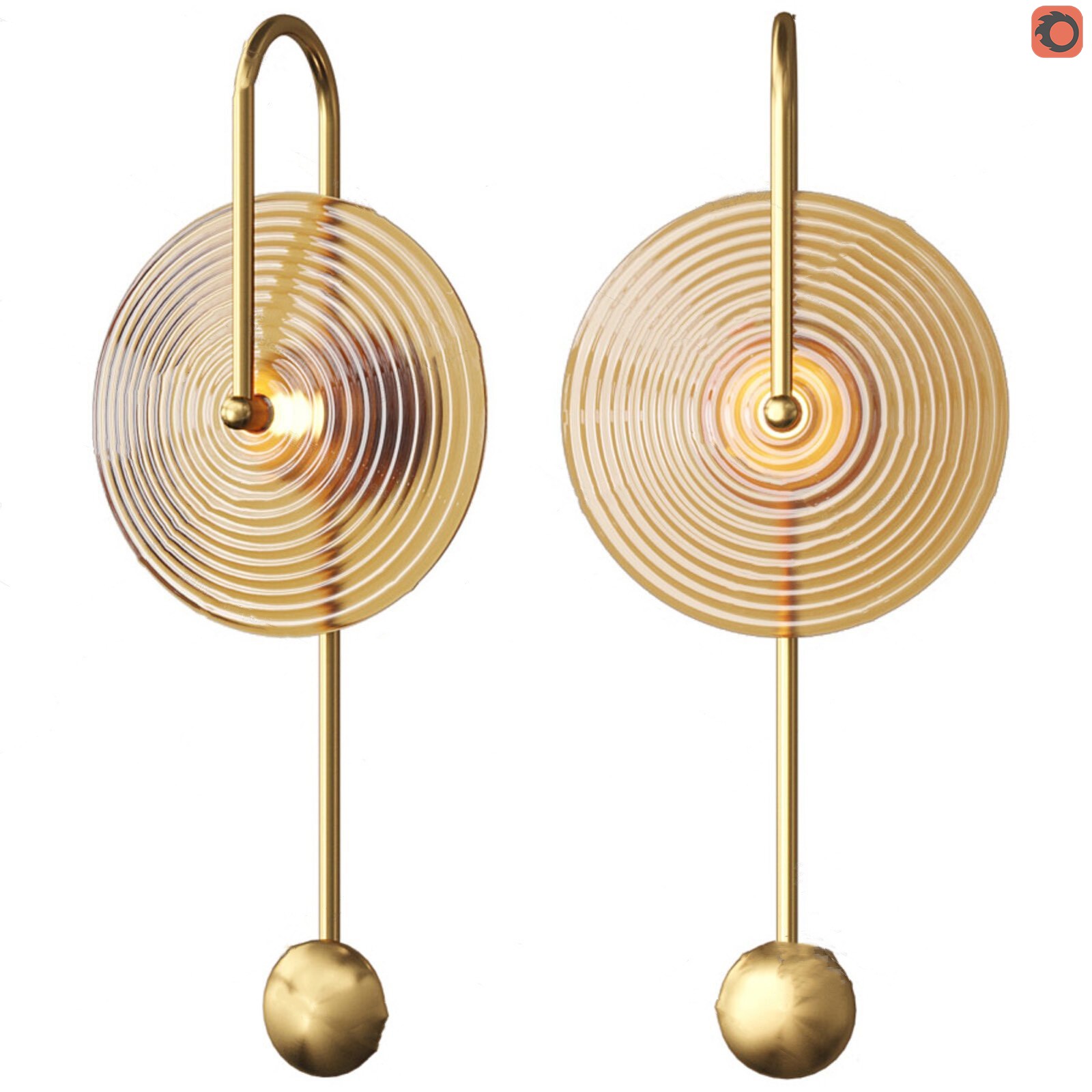 Wall light
  3dsky Model PRO
 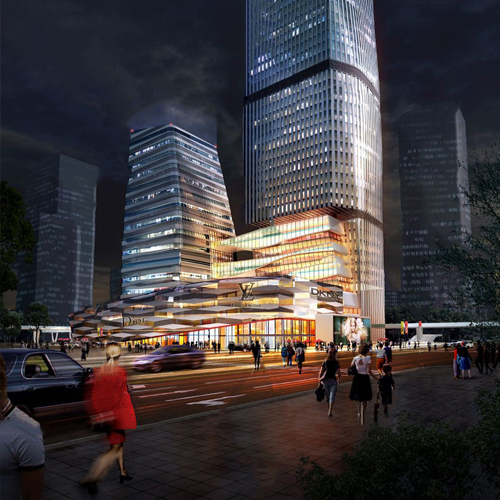 Architecture
 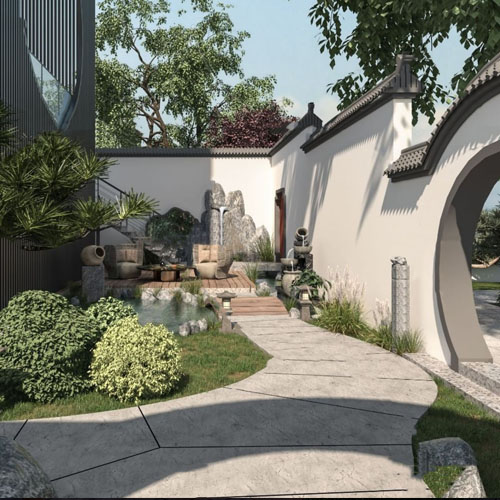 Miniature Garden
 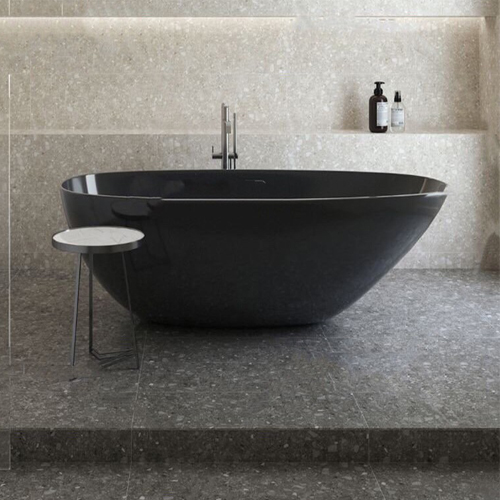 Bathroom
 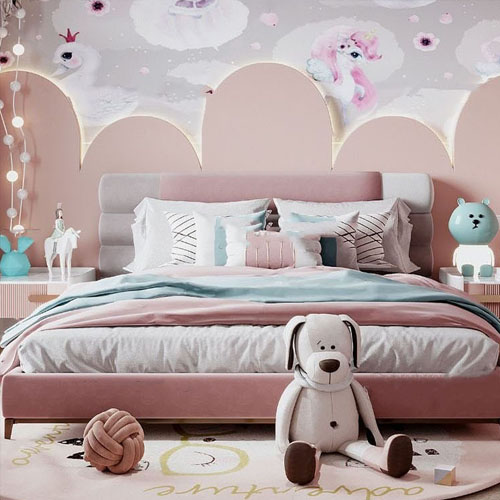 Childroom
  Evermotion Archexteriors
  FREE
FREE  Kitchen
  Materials
  Stone
Stone  Tile
Tile  OFFICE FURNITURE
  Sketchup
  Technology
  Textures
  Vip
Vip  3ds Max
  Photoshop
  Plugin
  Software
 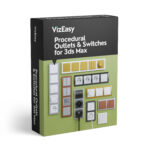 VizEasy – Procedural Outlets & Switches for 3ds Max PRO


Description
Bring Your 3ds Max Scenes to Life ✨
Are your stunning 3D interior renders missing that crucial touch of realism? Do illuminated lamps without visible cables or kitchen appliances sitting disconnected on countertops break the immersion of your scenes? As 3D artists, we often find ourselves awkwardly positioning cameras to hide these missing electrical details, or spending precious time manually modeling these small but vital elements.
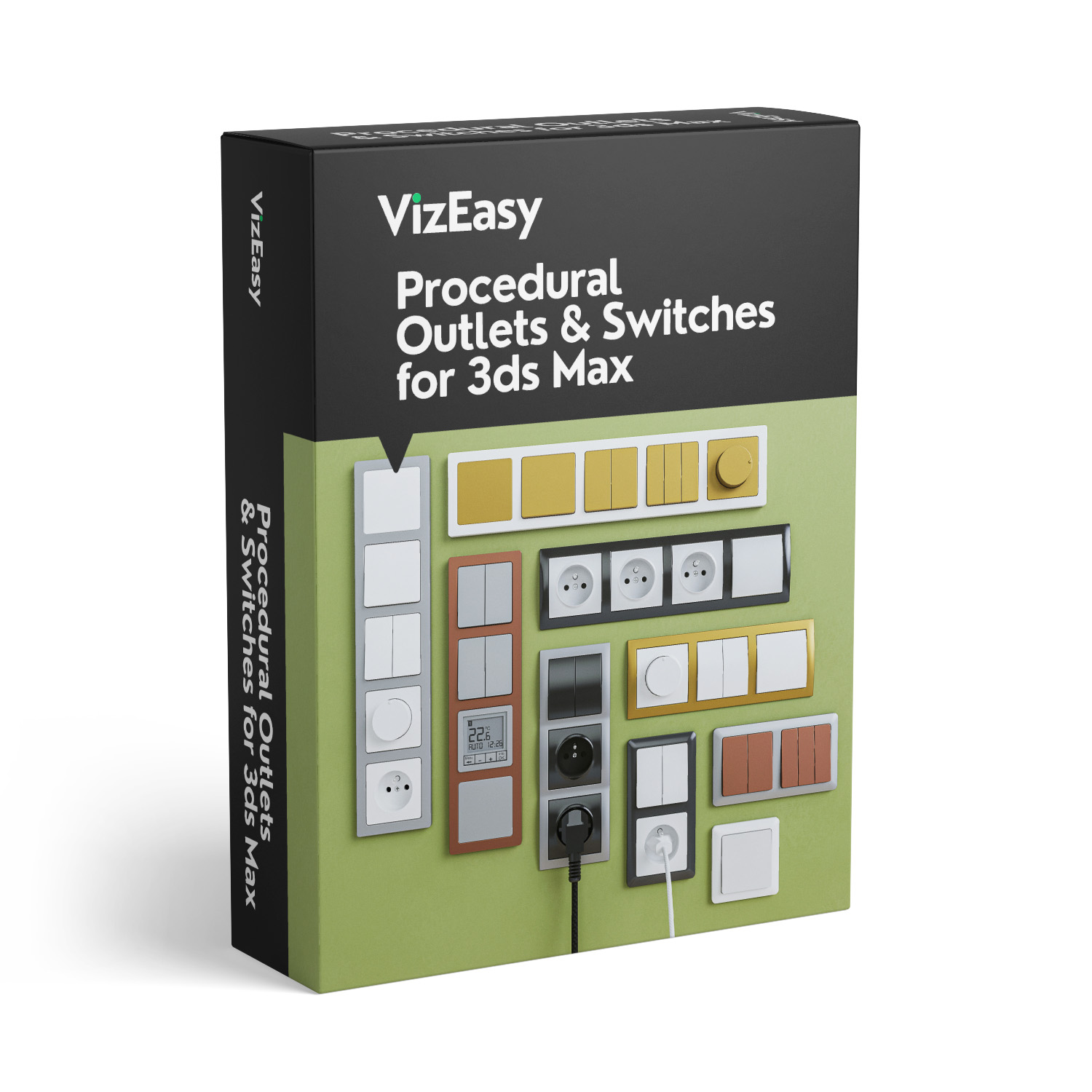
Say goodbye to those frustrations! The VizEasy Procedural Outlets & Switches script for 3ds Max is your ultimate solution for instantly adding fully customizable, realistic electrical fixtures to any scene. With just a click on a wall, you can place a socket or switch, then effortlessly modify it to achieve the perfect look, bringing your architectural visualizations to a new level of detail and believability. 🚀
This powerful script doesn’t just add realism; it saves you countless hours, allowing you to focus on the creative aspects of your design instead of tedious manual modeling.
Compatibility: 🖥️
- Works seamlessly with 3ds Max 2024 and higher.
- Fully compatible with V-Ray and Corona rendering engines.
Key Features & Benefits: ✅
Seamless Integration & Placement:
- Instant Placement: Simply click on any wall to instantly place an outlet or switch precisely where you need it. 🎯
- Automatic Hole Creation: Automatically creates necessary holes in the wall for 220V sockets for flush integration. 🕳️
- Smart Adhesion: The Glue feature automatically snaps the socket frame perfectly to the nearest wall, even if it was previously moved away or placed at a distance. 🔗
- Height Control: Define the Distance to Floor with convenient presets (20/90/135 cm) or set a custom height for precise placement. 📏
Ultimate Customization & Design:
- Design Variety: Choose from three distinct frame designs to match any aesthetic. 🎨
- Flexible Orientation: Easily switch between Horizontal/Vertical frame orientations. ↔️
- Frame Flip: Invert the frame horizontally or vertically for perfect alignment in any scenario. 🔄
- Socket Count: ocket Count: Select the Number of Sockets in the frame, from 1 to 5. #️⃣
- Diverse Socket Types: Integrate various Socket Types, including Blank Panel, 1 Switch, 2 Switches, 3 Switches, 220V Socket, Rotary Dimmer, and Temperature Display. 🔌
Interactive & Realistic Elements:
- Switch Control: Use a simple slider to change the position of the switch. 🖱️
- “On” Position: Instantly set the switch to the “On” position for visual accuracy. 🟢
- Rotary Dimmer: Add functional Rotary Dimmers with an interactive knob slider. 💡
- Temperature Display: Include realistic Temperature displays with On/Off toggle, preset or custom Time settings, and the option to hide/show the Glass. 🌡️
Dynamic Cable Management:
- Plug & Play: Choose from two Plug Types for your 220V sockets, with or without a plug. ⚡
- Automatic Cable Creation: The Create Cable feature generates a realistic cable attached to your plug. 🧵
- Realistic Gravity: The Put Down function automatically makes the cable realistically fall onto the surface below it. ⬇️
- Custom Length: Define the desired Length for your cables. 📏
- Precise Manipulation: Use Knots to manipulate and fine-tune the cable’s position with ease. 🪢
- Material Options: Select from Smooth or Braided Cable materials in black or white. ⚫⚪
Extensive Material Control:
- Frame Material: Choose your Frame Material from ready-made options or apply a custom color to match your scene. 🖼️
- Socket Material: Select Socket Material from presets or assign a custom color. 🎨
1. Installation
Close all running 3ds Max programs.
Copy the VizEasy_Switches_v1.1.2_Pro.mse file
to the C:\Program Files\Autodesk\3ds Max ####\scripts\Startup folder
or
C:\Users\%username%\AppData\Local\Autodesk\3dsMax\####
64bit\ENU\scripts\startup folder.
[#### – choose your 3ds Max version here, e.g.
C:\Program Files\Autodesk\3ds Max 2024\scripts\Startup
C:\Users\%username%\AppData\Local\Autodesk\3dsMax\2024 – 64bit\ENU\scripts\startup]
If you previously had a Lite version installed, remove it. There can only be one Procedural
Outlet & Switches file in the folder. After that you can restart 3ds max
















Review VizEasy – Procedural Outlets & Switches for 3ds Max PRO
There are no reviews yet.